Search This Blog

Monday, June 30, 2025

How do I get a CARD display to navigate from one form to another form

 Navigating between forms using a Card display in Oracle APEX enhances user workflows by allowing quick transitions from one data entry screen to another. With Cards, you can present key summary information for each record and embed navigation controls—such as buttons or clickable headers—that redirect users to the appropriate form page. This technique streamlines data management tasks, enabling users to select a card and immediately open a related form pre‑populated with the card’s record identifier.

In Oracle APEX, you can configure a Cards region so that clicking on a card navigates users from one form to another, passing the appropriate record identifier. Follow these steps:

  1. Prepare Both Forms
    • Ensure you have two form pages: the source form (where the Cards region lives) and the target form (where you edit or view the record).
    • On the target form page, create a page item (e.g., P10_RECORD_ID) bound to the primary key column of your table.

  2. Create or Edit the Cards Region
    • In Page Designer, open the source form page.
    • Under Regions, select your Cards region (or create one based on a SQL query that returns your records).
    • Make sure your SQL returns a unique identifier column (ID) and any display columns (e.g., TITLE, SUBTITLE).

  3. Configure the Card Link
    • In the Cards region’s Attributes pane, find Link Column and set it to the unique identifier column (e.g., ID).
    • Scroll to the Link section:
      – Page: enter the target form’s page number (e.g., 10).
      – Set Items: enter the target page item name (e.g., P10_RECORD_ID).
      – With Values: enter the substitution syntax for the Link Column, e.g. #ID#.
    This tells APEX to redirect to page 10 and set P10_RECORD_ID = current card’s ID.

  4. Choose Link Appearance
    • Still under Link, set Link Text if you want a button or label on the card (e.g., “Edit”).
    • If you leave Link Text blank, the entire card becomes clickable.

  5. Optional: Open as Modal Dialog
    • If you prefer a popup form, set Target > Page Mode to Modal Dialog.
    • Configure Dialog attributes (size, title) under the target page’s Dialog settings.

  6. Test the Navigation
    • Save and run the source page.
    • Click a card (or its Edit button). You should be taken to the target form with P10_RECORD_ID populated.
    • Verify the form loads the correct record for editing or viewing.

By mapping the Cards region’s Link settings to your form page and passing the record ID, you enable seamless navigation between forms using a modern card interface.

Example

Navigating Between Forms Using a Card Display in Oracle APEX

Oracle APEX allows users to create Card Reports, which provide a structured way to display data visually. You can enhance these cards by adding navigation functionality, allowing users to click on a card and be redirected to another form where they can view or edit details.

This tutorial covers how to set up a Card Report that navigates from one form to another.

Step 1: Creating the Source Form

Before setting up the navigation, ensure you have a form page that will serve as the destination.

  1. Open Oracle APEX and navigate to your application.

  2. Click CreatePageFormForm on a Table or View.

  3. Select the table that contains the records for your cards.

  4. Ensure the form includes a Primary Key item (e.g., ID).

  5. Click Next, configure any additional settings, and create the page.

Once the form is created, note the Page Number because you will need it to configure the navigation from the Card Report.

Step 2: Creating a Card Report

  1. Open Oracle APEX and navigate to your application.

  2. Click CreatePageReportCards Report.

  3. Choose the same table or SQL query as the form’s data source.

  4. Click Next, then select the Card Attributes such as Title, Body, and Image (optional).

  5. Click Create to generate the page.

Now you have a Card Report displaying records from your table.

Step 3: Adding Navigation to the Card

Method 1: Using the Card Action Attribute

  1. Open the Card Report in Page Designer.

  2. Select the Cards Region in the Rendering Tree.

  3. Under the Attributes section, locate the Actions option.

  4. Click Add Action and choose Link.

  5. In the Action Type, select Redirect to Page in this Application.

  6. In Target Page, enter the page number of your Form Page.

  7. In the Set Items section, map the primary key (ID) from the card to the form item: 

    • Item Name: PXX_ID

    • Value: #ID#

  8. Click Save and run the page to test the navigation.

Now, when a user clicks on a card, they will be redirected to the Form Page, with the selected record preloaded.

Method 2: Adding Navigation Using a Custom SQL Query

If you are using a Custom SQL Query for the Card Report, you can add a navigation link directly within the SQL.

  1. Open the Cards Report in Page Designer.

  2. Modify the SQL Query to include a dynamic link column:

SELECT 

    ID, 

    TITLE, 

    DESCRIPTION, 

    IMAGE_URL, 

    'f?p=&APP_ID.:20:&SESSION.::NO::P20_ID:' || ID AS ACTION_LINK

FROM EMPLOYEES

  1. In Card Attributes, set Action Type to Link and choose ACTION_LINK as the URL Column.

  2. Click Save and test the navigation.

This method ensures that clicking on the card redirects the user while dynamically passing the selected record’s ID to the Form Page.

Step 4: Styling and Enhancing the Card

To make the card look more interactive, apply custom CSS.

  1. Go to Shared ComponentsThemesCustom CSS.

  2. Add the following CSS:

.t-Card-actions a {

    background-color: #0073e6;

    color: white;

    padding: 8px 12px;

    border-radius: 5px;

    text-decoration: none;

    display: inline-block;

}


.t-Card-actions a:hover {

    background-color: #005bb5;

}

  1. Save and refresh the page.

This makes the button inside the card more visually appealing.

Step 5: Testing and Best Practices

  1. Run the application and navigate to the Card Report page.

  2. Click on any card to verify that it redirects to the Form Page with the correct data preloaded.

  3. If the form does not show data, ensure that the Page Item (PXX_ID) is properly mapped.

  4. For better performance, limit the number of cards displayed per page.

  5. Use item substitution to pass additional values if needed.

By following this tutorial, you can create an interactive Card Report that allows users to click on a card and navigate to a Form Page to view or edit details. Whether using Card Actions, Custom SQL Links, or Dynamic Styling, this method enhances the user experience in Oracle APEX.

EXAMPLE:

Cards don’t have links but they can have Actionbuttons.

Step 1 – Create a Card report for the CUSTOMER table

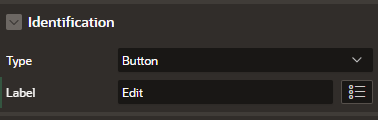
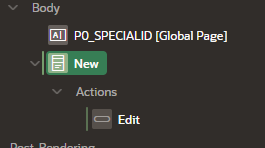
Step 2- Add an action to the CARD region, make it a Type: Button, and name it Edit
A screenshot of a computer

Description automatically generated   A screenshot of a computer

Description automatically generated

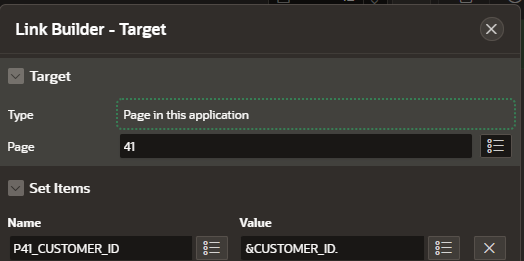
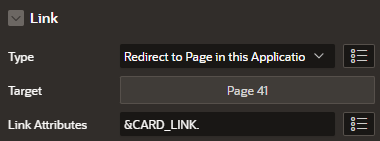
Step 3  -  Create  link to page 41 and pass the correct values
A screenshot of a computer

Description automatically generated

A screenshot of a computer

Description automatically generated

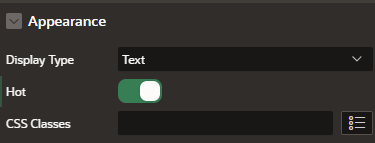
Step 4- change the button’s appearance if you need to
A screenshot of a computer

Description automatically generated

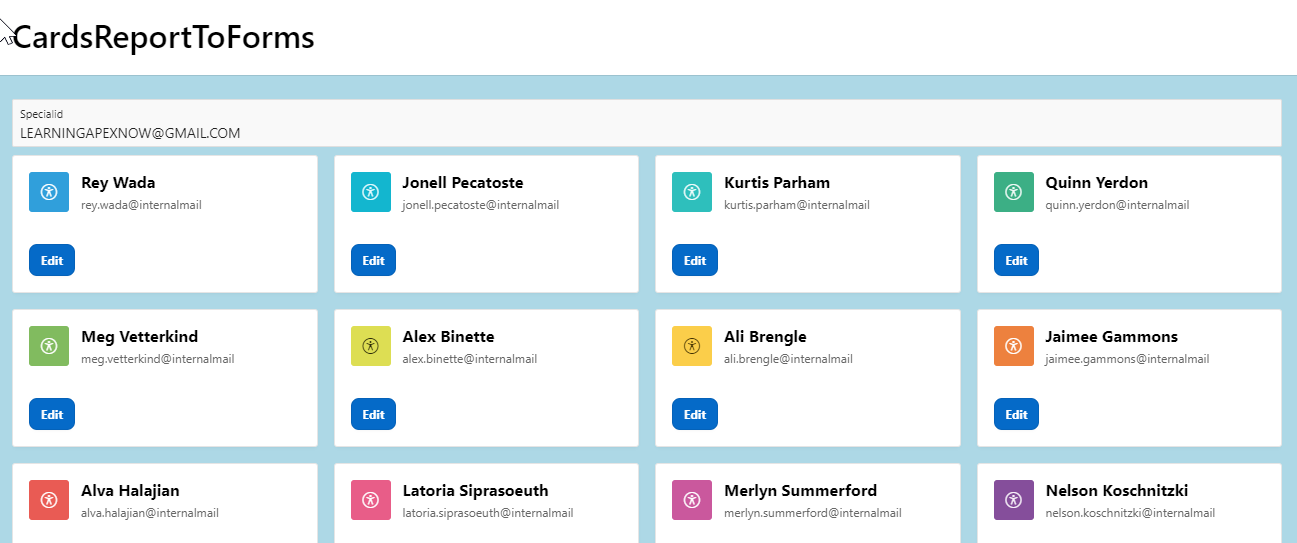
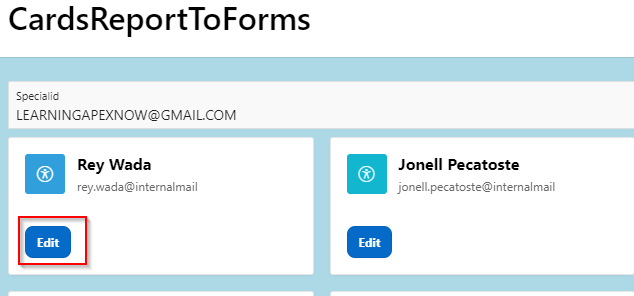
Save and Browse

A screenshot of a computer

AI-generated content may be incorrect. 

A screenshot of a computer

Description automatically generated 

A blue and white rectangular object

Description automatically generated 

By configuring each Card’s Link attributes to target the desired form page and passing the necessary item values (for example, record IDs), you create a seamless navigation experience. Users can move directly from a high‑level overview to detailed forms without manual URL entry or multiple clicks. Implementing this pattern in your APEX application not only improves efficiency but also provides a polished, intuitive interface for managing related data across multiple forms.

How do I add a navigation button to a CARD

 Adding a navigation button to a card in Oracle APEX allows users to quickly jump from a summarized data view to a more detailed page or another section of the application. Cards provide a modern, tile‑based layout for displaying records, and embedding a button—such as “View Details” or “Edit”—directly on each card enhances interactivity and streamlines navigation. This blog post will explain how to configure a card region’s Link or Button attributes to include a navigation control that passes key item values to the target page, ensuring a seamless user experience.

In Oracle APEX, adding a navigation button to each card in a Cards region lets users click directly from a visual tile to a detailed page or another area of your application. You can achieve this by configuring the Cards region’s Link settings to render a button or clickable area with the correct target page and parameter mappings.

  1. Open the page in Page Designer and locate the Cards region.

  2. Expand the Cards region node and click on Attributes.

  3. In the Card Columns section, find the Link Column property and select the column (or alias) you want to use as your link target—this can be your primary key or any unique identifier field in your SQL query.

  4. Still under Attributes, locate the Link sub‑section. Set Page to the target page number you want users to navigate to when they click the button (for example, Page 20).

  5. In the Set Items field, enter the name of the page item(s) on the target page (for example, P20_RECORD_ID).

  6. In the With Values field, specify the substitution for each link column value using the notation #COLUMN_NAME# (for example, #ID#). If you have multiple items, separate them with commas.

  7. To render a button instead of turning the entire card into a link, switch the Link Text property to the label you want on the button (for example, “View Details”). Cards will automatically display that text as a button or hyperlink.

  8. Optionally, customize the appearance under Appearance by assigning a CSS class (for example, “u-button”) to style your button consistently with your theme.

  9. Save and run the page. Each card will now display a “View Details” button (or your chosen label). Clicking it submits a redirect to the specified page, passing the correct record ID so the detail page can show the corresponding data.

By following these steps, you integrate clear, inline navigation controls into your card layout, making it easy for users to drill down from a high‑level overview to detailed content with a single click.

Example

Adding a Navigation Button to a Card in Oracle APEX

In Oracle APEX, cards are a great way to display structured information in a visually appealing format. Adding a navigation button to a card enhances user experience by allowing users to navigate to another page, open a modal dialog, or trigger a process.

This tutorial covers how to add a navigation button to a card in APEX, configure it to link to another page, and customize its appearance.

Step 1: Creating a Cards Report

Before adding a navigation button, ensure that you have a Cards Report in your application.

  1. Open Oracle APEX and navigate to your application.

  2. Create a new Cards Report by selecting: 

    • CreatePageReportCards Report

  3. Choose a table or SQL query as the data source.

  4. Configure the Card Attributes such as Title, Body, and Media.

  5. Click Create and save the page.

If you already have a Cards Report, proceed to the next step.

Step 2: Adding a Navigation Button to the Card

Method 1: Using the Card Actions Attribute

  1. Open the Cards Report in Page Designer.

  2. Select the Cards Region in the Rendering Tree.

  3. In the Attributes section, locate the Actions option.

  4. Click Add to create a new action.

  5. Choose Button as the action type.

  6. Configure the button label (e.g., "View Details").

  7. Set the Action Type to Redirect to Page in this Application.

  8. Choose the Target Page Number where the button should navigate.

  9. (Optional) Pass a parameter by adding Set Items

    • Item Name: PXX_ID

    • Value: #ID# (Replace with the appropriate column)

Click Save and Run the Page to test the button functionality.

Method 2: Adding a Navigation Button via a SQL Query

If you are using a Custom SQL Query for the Cards Report, you can embed a navigation link directly in the SQL.

  1. Open the Cards Report in Page Designer.

  2. Modify the SQL Query to include a link in the Actions column:

SELECT 

    ID, 

    TITLE, 

    DESCRIPTION, 

    IMAGE_URL, 

    'f?p=&APP_ID.:20:&SESSION.::NO::P20_ID:' || ID AS ACTION_LINK

FROM EMPLOYEES

  1. In Cards Attributes, set Action Type to Link and choose ACTION_LINK as the URL column.

  2. Save and test the report.

This method dynamically generates navigation buttons based on the database values.


Step 3: Styling the Navigation Button with CSS

To improve the button’s appearance, apply custom CSS.

  1. Go to Shared ComponentsThemesCustom CSS.

  2. Add the following CSS:

.t-Card-actions a {

    background-color: #0073e6;

    color: white;

    padding: 8px 12px;

    border-radius: 5px;

    text-decoration: none;

    display: inline-block;

}


.t-Card-actions a:hover {

    background-color: #005bb5;

}

  1. Save and refresh the page.

This makes the button stand out with a professional look.

Step 4: Using Dynamic Actions for Custom Behavior

Instead of a direct navigation link, you can trigger a Dynamic Action when the button is clicked.

  1. Open Page Designer and select the Cards Report.

  2. Click Dynamic ActionsCreate.

  3. Set Event to Click.

  4. Choose Affected ElementButton Selector (.t-Card-actions a).

  5. Define the Action (e.g., Redirect to Page, Open Modal, or Show Message).

  6. Save and test the behavior.

This approach is useful for adding confirmations or pop-ups before navigation.


Step 5: Testing and Best Practices

  1. Run the page and click the button to ensure it navigates correctly.

  2. Use item substitution to pass dynamic values between pages.

  3. Ensure accessibility by using appropriate button labels and colors.

  4. Optimize performance by limiting SQL query complexity.

Adding a navigation button to a card in APEX enhances interactivity and user experience. Whether using built-in Card Actions, SQL-based links, CSS styling, or Dynamic Actions, you can customize the button to fit your application’s needs.

EXAMPLE:

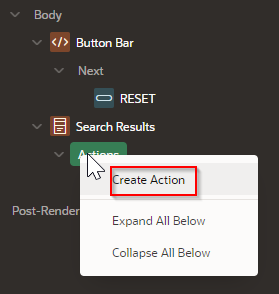
Step 1 – Create an “Action” in the card (Note: this is not the same as an Dynamic Action) 

A screenshot of a computer

AI-generated content may be incorrect.

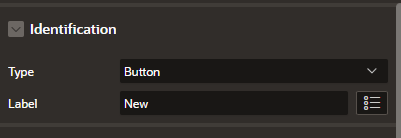
Step 2- make the Action Type “Button.

A screenshot of a computer

Description automatically generated

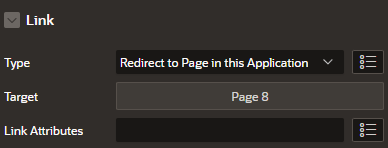
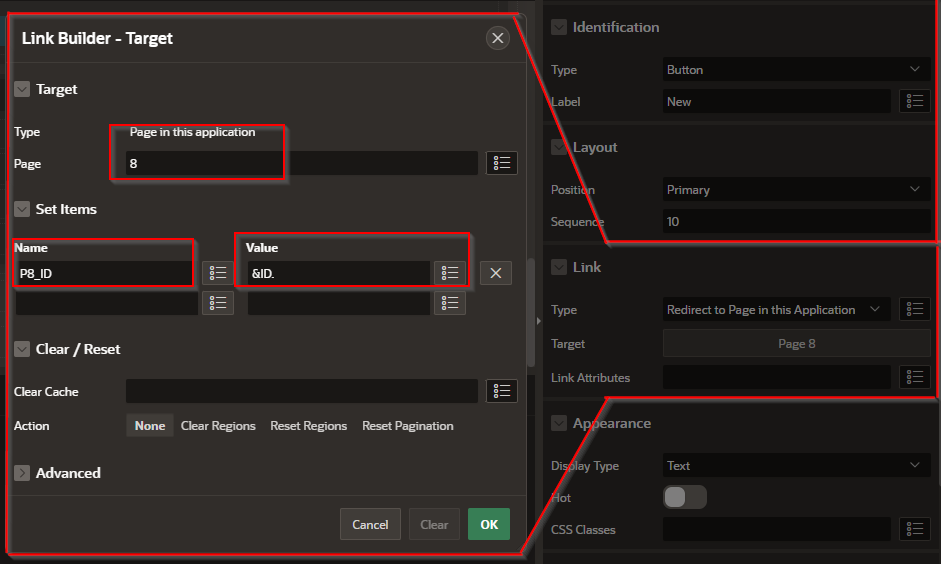
Step 3 Set the redirect page information.

A screenshot of a computer error

Description automatically generated

  • Set Page to the page number that you want to navigate.

  • Set Name to the item in page 8 that will get some data from this current page.

    • In this case P8_ID is the item on page 8 that holds the value for the  key identifier of the table.

  • Set Value to the value that you want to pass into the item in page 8.

In this case is “&ID.” The “&” at the front of the value and the “.” At the end of the value are required.

A screenshot of a computer

AI-generated content may be incorrect.

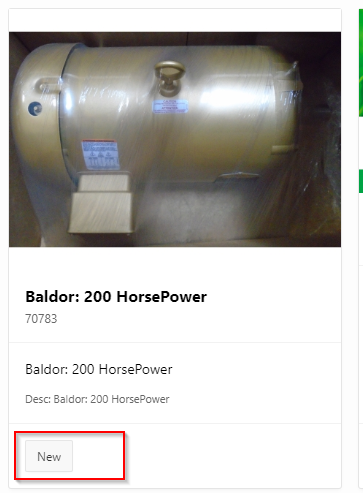
The card should look something like this:

In conclusion, adding a navigation button to cards in Oracle APEX combines visual appeal with functional efficiency. By configuring the card region’s Link or Button Column settings, and supplying the appropriate page number and item mappings, you enable users to move effortlessly from a high‑level overview to detailed views. This approach improves both usability and workflow, making your APEX applications more intuitive and user‑friendly.

UI Defaults

 In Oracle APEX, User Interface (UI) Defaults are a set of metadata-driven, table- and column-scoped attributes that APEX consults when it g...