Search This Blog

Monday, June 30, 2025

Faceted Report with Cards

 Faceted Reports with Cards in Oracle APEX combine the power of faceted search filters with a modern, card‑based layout to present data in an engaging and interactive way. Faceted Reports allow users to drill down into large datasets using multiple filter facets—such as categories, dates, or status—and see results update in real time. By choosing a “Cards” presentation template, each record is displayed as a visually distinct card, showing key attributes at a glance and supporting actions like links or buttons directly on the card itself. This approach is ideal for scenarios like product catalogs, employee directories, or any dataset where visual grouping and quick filtering improve user experience.

To create a Faceted Report with Cards in Oracle APEX, you first need a dataset that contains the records you want to display. Open your application in App Builder, then click Create → Page → Report → Faceted Search. Give the page a name and choose the table or SQL query as the data source. Once created, change the “Report Type” in the Faceted Search region to “Cards.” This switches the display from a classic list to card tiles, each representing a record.

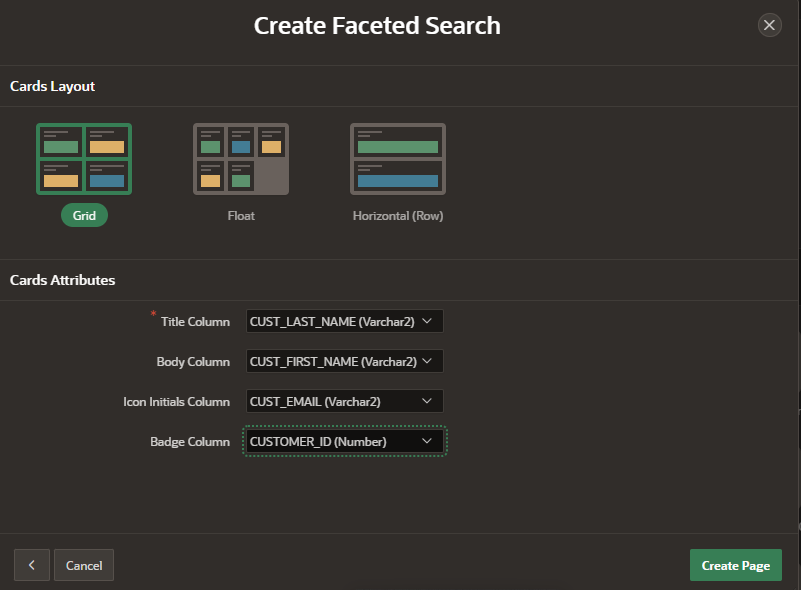
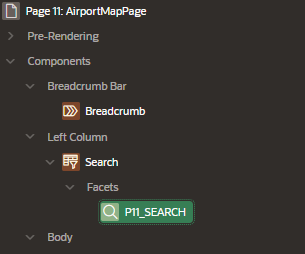
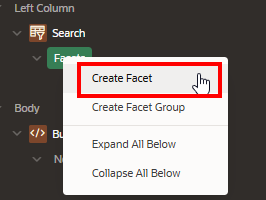
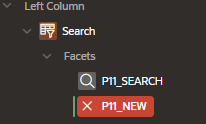
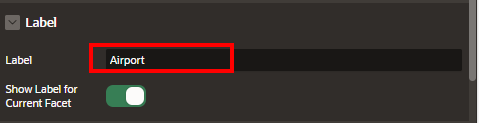
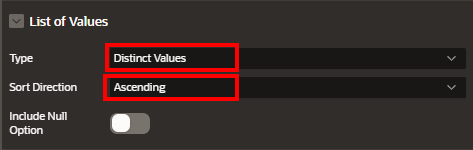
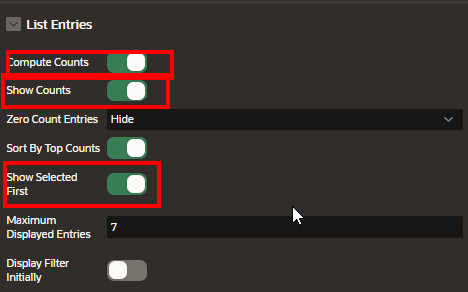
Next, define your facets (filters) by clicking the “Facets” section in Page Designer. For each facet—such as category, date range, or status—set the Type (e.g., List of Values, Slider, Date Picker) and bind it to the appropriate column or expression in your dataset. Configure the facet label and choose whether it allows single or multiple selections. Under the Cards region’s Attributes, map the card template fields: set the Title Column to the primary descriptive field (e.g., PRODUCT_NAME), Subtitle to a secondary attribute (e.g., CATEGORY), and Text to a longer description or HTML Expression. You can also add an Image Column if your data includes a URL for an image, and define Link Column settings to make each card clickable, redirecting users to detail pages or modal dialogs.

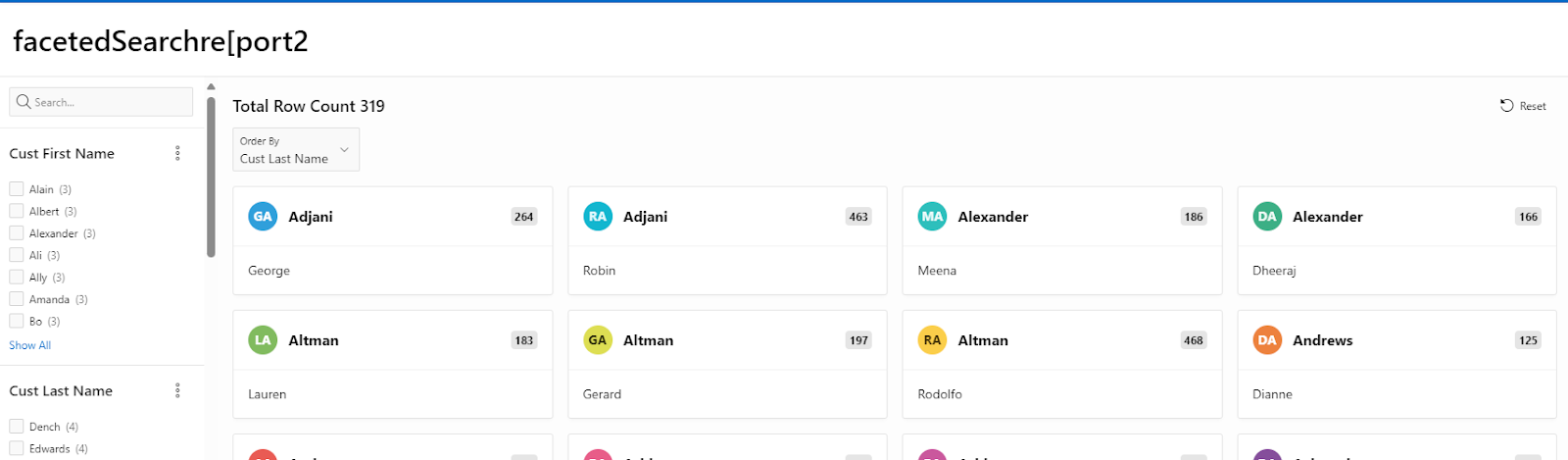
Finally, adjust the Cards layout under Appearance: choose the number of cards per row, card height, and text alignment. You can fine‑tune styling with custom CSS classes in Inline CSS or within the Theme Roller. Run your page to see faceted filters on the left (or top) and dynamically updating cards on the right, giving users both powerful search capabilities and a modern, visual presentation of data. This combination of faceted filtering and card layout delivers an engaging, user‑friendly interface that scales well for catalogs, dashboards, or any searchable card‑based content.

Example

Additional Customization

  • Filter Data on the Map: You can add filtering options to your page (e.g., drop-downs for selecting regions or airport types) so that users can narrow down the map markers.

  • Styling: You can customize the look and feel of your map by editing the page styles or adding custom CSS.

By following these steps, you can create a Map Report in Oracle APEX that displays airport locations using the AirportsLatLon table. The markers will be placed based on the Latitude and Longitude, and clicking on each marker will show more details about the airport, such as its name and IATA code.

Creating a Faceted Search Report with Cards in Oracle APEX

A faceted search report with cards in Oracle APEX allows users to refine their search dynamically using multiple filter options while displaying the results in a visually appealing card layout. This approach is useful for applications requiring interactive filtering, such as product catalogs, employee directories, or real estate listings.

Understanding Faceted Search Reports and Cards

Faceted Search Report

A faceted search is a dynamic filtering system that lets users refine data using multiple criteria. The facets appear as filter options on the side, allowing users to drill down into data by selecting relevant attributes.

Cards Report

The Cards Report displays data in a grid-like structure, where each row from a query is represented as a card with a customizable layout. It is useful for presenting information in a more visual format than standard reports.

By combining faceted search and cards, we can create an interactive and visually appealing data display in APEX.

Step 1: Creating the Faceted Search Report with Cards

1. Create a New Page

  1. Open Oracle APEX and navigate to your application.

  2. Click Create > Page.

  3. Select Faceted Search and click Next.

  4. Choose Cards as the report type.

  5. Select the table or SQL query that will provide the data.

  6. Click Next, configure the attributes as needed, and click Finish.

Step 2: Configuring the Faceted Search

Once the page is created, APEX automatically generates the faceted search region and a cards report.

1. Adding Facets

  1. Open the Faceted Search Region in Page Designer.

  2. Click + Add Facet to define a new filtering option.

  3. Choose a data column for filtering. Examples include: 

    • Category (e.g., Department, Product Type)

    • Price Range (e.g., Low, Medium, High)

    • Date (e.g., Created Date, Last Updated)

  4. Select the appropriate facet type

    • Checkbox List: Multiple selections

    • Range Slider: For numerical values like price

    • Date Picker: For filtering by date

  5. Configure the display settings, labels, and sorting.

  6. Click Apply Changes.

Step 3: Configuring the Cards Report

1. Customizing the Card Appearance

  1. Open the Cards Report region in Page Designer.

  2. Under Appearance, customize: 

    • Card Title: Select the column to display as the card title.

    • Card Body: Choose additional columns for description or details.

    • Card Media: Assign an image column if available.

    • Card Actions: Add buttons or links for user interaction.

2. Adjusting the Card Layout

  1. Under Attributes, modify the number of cards per row.

  2. Choose different layouts like Grid, Floating, or Stacked.

  3. Enable Lazy Loading to improve performance on large datasets.


Step 4: Enhancing with Dynamic Actions

1. Refreshing Cards When a Facet Changes

  1. Go to Faceted Search Region in Page Designer.

  2. Under Dynamic Actions, create a new action: 

    • Event: Facet Value Changed

    • Action: Refresh

    • Affected Element: Cards Report

This ensures that selecting a facet automatically refreshes the results without a full-page reload.

Step 5: Adding Custom Styling with CSS

For a more refined appearance, apply CSS styling to modify the card design.

1. Adding CSS to Improve Card Display

  1. Navigate to Shared Components > Themes > Custom CSS.

Add custom CSS:

.t-Card {

    border-radius: 10px;

    box-shadow: 2px 2px 10px rgba(0, 0, 0, 0.1);

    transition: transform 0.3s ease-in-out;

}


.t-Card:hover {

    transform: scale(1.05);

}

This enhances the card appearance with rounded corners, shadows, and a hover effect.

Step 6: Testing the Faceted Search Report with Cards

  1. Click Run Page in APEX.

  2. Use the facet filters to refine the data dynamically.

  3. Observe how the results update within the card layout.

  4. Adjust facets and styling as needed for an optimal user experience.


Best Use Cases for Faceted Reports with Cards

  • Product Catalogs: Allows filtering by category, price, and availability.

  • Employee Directories: Filters employees by department, role, and location.

  • Real Estate Listings: Enables searches based on price, location, and property type.

  • Event Listings: Allows filtering by date, category, and venue.

A faceted search report with cards in APEX provides an interactive and user-friendly way to display data. By integrating filters, dynamic actions, and CSS styling, you can create a highly functional and visually appealing report.

This approach improves usability, enhances data exploration, and offers a modern, responsive interface.

EXAMPLE:

A screenshot of a computer

Description automatically generated

A screenshot of a computer

Description automatically generated

A screenshot of a computer

Description automatically generated

By implementing a Faceted Report with Cards in your APEX application, you give users an intuitive interface for both exploration and discovery. The faceted filters empower them to narrow results quickly, while the card layout highlights individual record details in a compact, visually appealing format. Together, these features create a dynamic and responsive report that adapts to user needs, making data browsing faster and more engaging without sacrificing performance or flexibility.

How do I Create an Airport Map Report

 In this tutorial, you’ll learn how to create an Airport Map Report in Oracle APEX to visualize airport locations on an interactive map. By leveraging your airports table—with columns for latitude, longitude, airport code, and city—you can plot each airport as a marker. We’ll walk through setting up the Map region, writing a SQL query to retrieve the necessary fields, configuring marker layers, and adding tooltips that display airport details on hover. By the end, you’ll have a dynamic map that helps users explore airport locations at a glance.

In Oracle APEX, you can create an Airport Map Report that plots airport locations on an interactive map using latitude and longitude data from your US_AIRPORTS table. Follow these steps:

1. Prepare Your Data
  • Ensure your table includes columns for latitude, longitude, airport code, and city (e.g., CITY, STATE, AIRPORT_CODE, LATITUDE, LONGITUDE).
  • Optionally, add descriptive columns like AIRPORT_NAME or TERMINAL_COUNT for tooltips.

2. Create the Map Region
  • In App Builder, open the page where you want the map.
  • Click CreateRegion.
  • Choose Map as the region type.
  • Enter a Title (e.g., Airport Locations).

3. Define the SQL Source
  Under the Map region’s Source section:

SELECT 
  latitude  AS lat,
  longitude AS lon,
  airport_code  AS id,
  city || ', ' || state AS tooltip_text
FROM US_AIRPORTS

  • lat and lon map to location.
  • id is a unique key.
  • tooltip_text combines city and state for hover info.

4. Configure the Layer
  Under Layer settings:
  • Layer Type: Point
  • Latitude Column: LAT
  • Longitude Column: LON
  • Tooltip Column: TOOLTIP_TEXT
  • (Optional) Marker Icon: choose a custom pin or built‑in icon.
  • (Optional) Clustering: enable if you have many airports close together.

5. Set Map Attributes
  Under Attributes:
  • Map Provider: Oracle Maps or Google Maps
  • Initial Zoom: e.g., 4 (to show continental coverage)
  • Initial Center: pick a central latitude/longitude, e.g., (39.8283, -98.5795) for US center
  • Enable controls: Zoom, Pan, Scale Bar as needed

6. Add a Click Action (Optional)
  To open a detail page when a marker is clicked:
  • Under LayerMarker Click → set Action to Redirect
  • Target: Page in this application (e.g., Page 20)
  • Set Items: P20_AIRPORT_CODE = #ID#

7. Style and Appearance
  • Under Appearance, adjust Height (e.g., 500px)
  • Use Template Options to control border and shadow
  • Add custom CSS in the page’s Inline CSS if you want unique styling for your map container

After saving, run the page. You’ll see each airport plotted as a marker; hovering displays the city and state, and clicking can navigate to an airport detail page. This Airport Map Report leverages APEX’s declarative map features to provide an interactive geographic visualization of your data.

Example

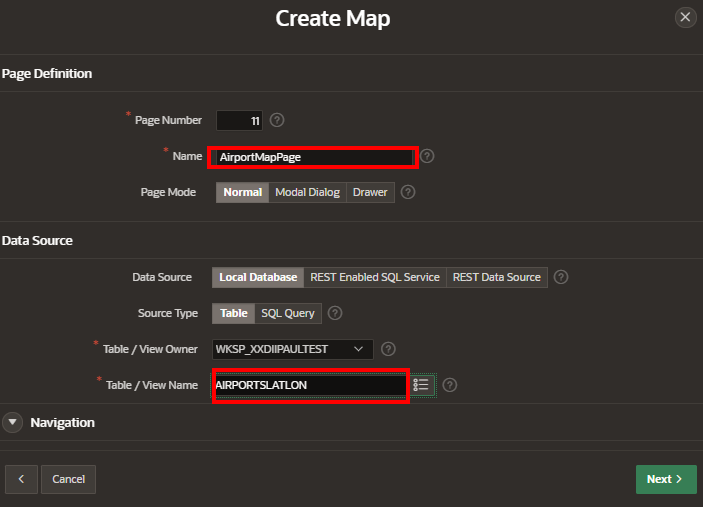
To create a Map Report in Oracle APEX that displays airports using the AirportsLatLon table with airportname, IATACode, Latitude, and Longitude columns, follow the steps below.

Prerequisites:

The AirportsLatLon table should contain the columns: 

  • airportname (VARCHAR)

  • IATACode (VARCHAR)

  • Latitude (NUMBER)

  • Longitude (NUMBER)

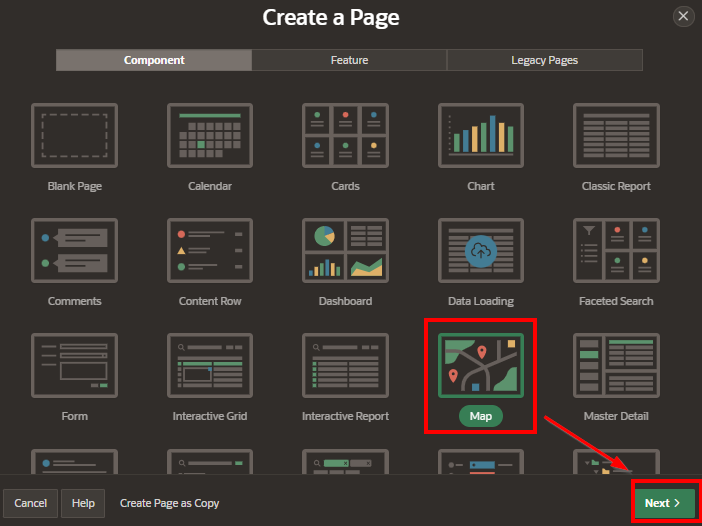
Step 1: Create a New Page for the Map

  1. Click on Create to create a new page.

  2. Select Chart > Map from the options.

  3. Click Next.

A screenshot of a computer

AI-generated content may be incorrect.

A screenshot of a map

AI-generated content may be incorrect.

Step 2: Configure the Map Region

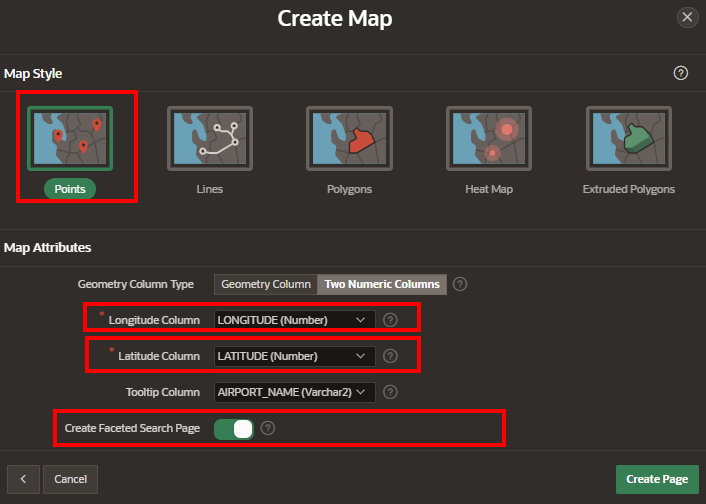
  1. Choose Map Type: Select Google Maps or another map provider (e.g., OpenStreetMap). Google Maps is a common choice, but you can choose based on your needs.

A screenshot of a map

AI-generated content may be incorrect.

  1. Define the Data Source (If done manually):

    • Select SQL Query as the data source for the map.

    • Write the SQL query to pull the required data from the AirportsLatLon table. The SQL query should look like this:

SELECT airportname AS title,

       IATACode AS description,

       Latitude AS latitude,

       Longitude AS longitude

FROM AirportsLatLon;

  1. Columns Mapping:

    • Title: Set to airportname (to display the airport name in the map popup).

    • Description: Set to IATACode (to display the IATA code in the popup).

    • Latitude: Set to Latitude (the latitude of the airport).

    • Longitude: Set to Longitude (the longitude of the airport).

Result:

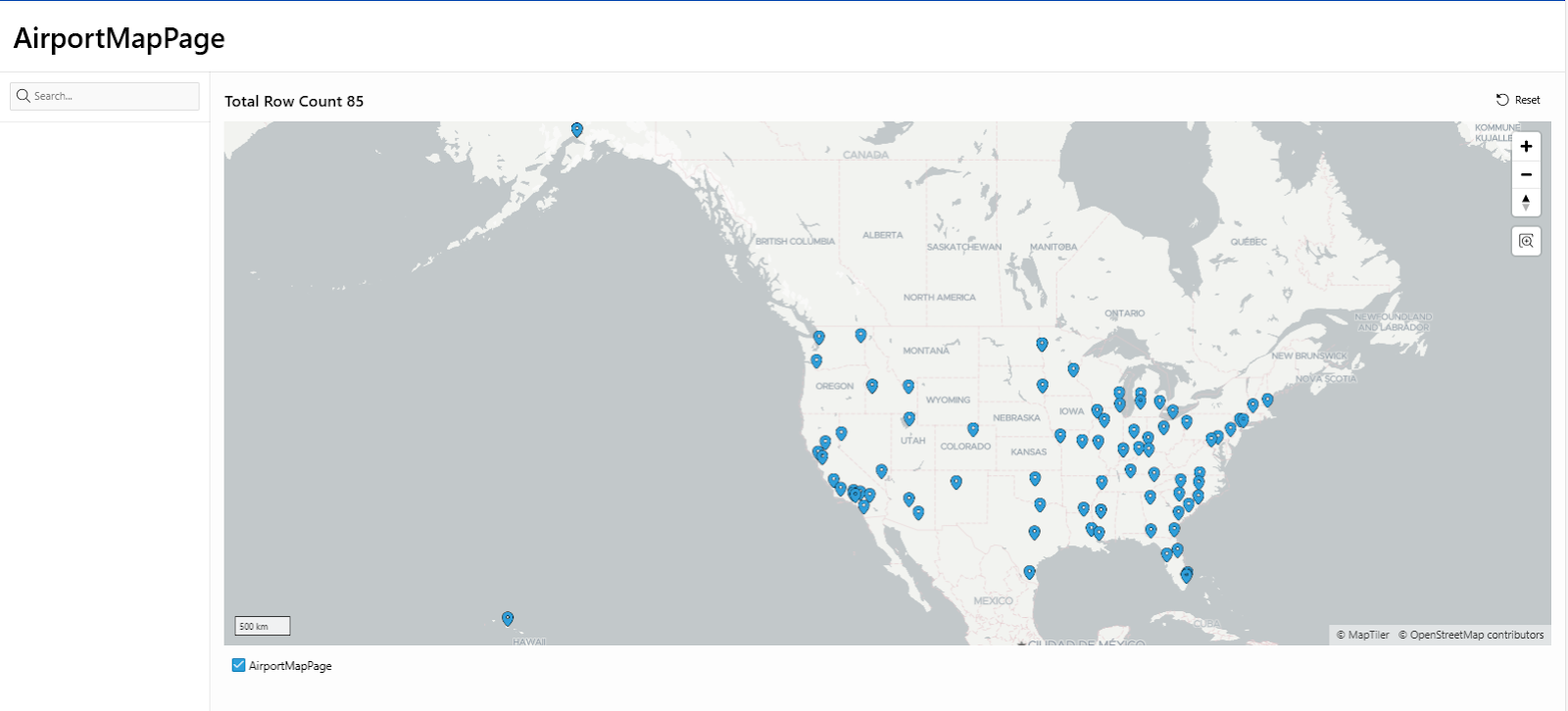
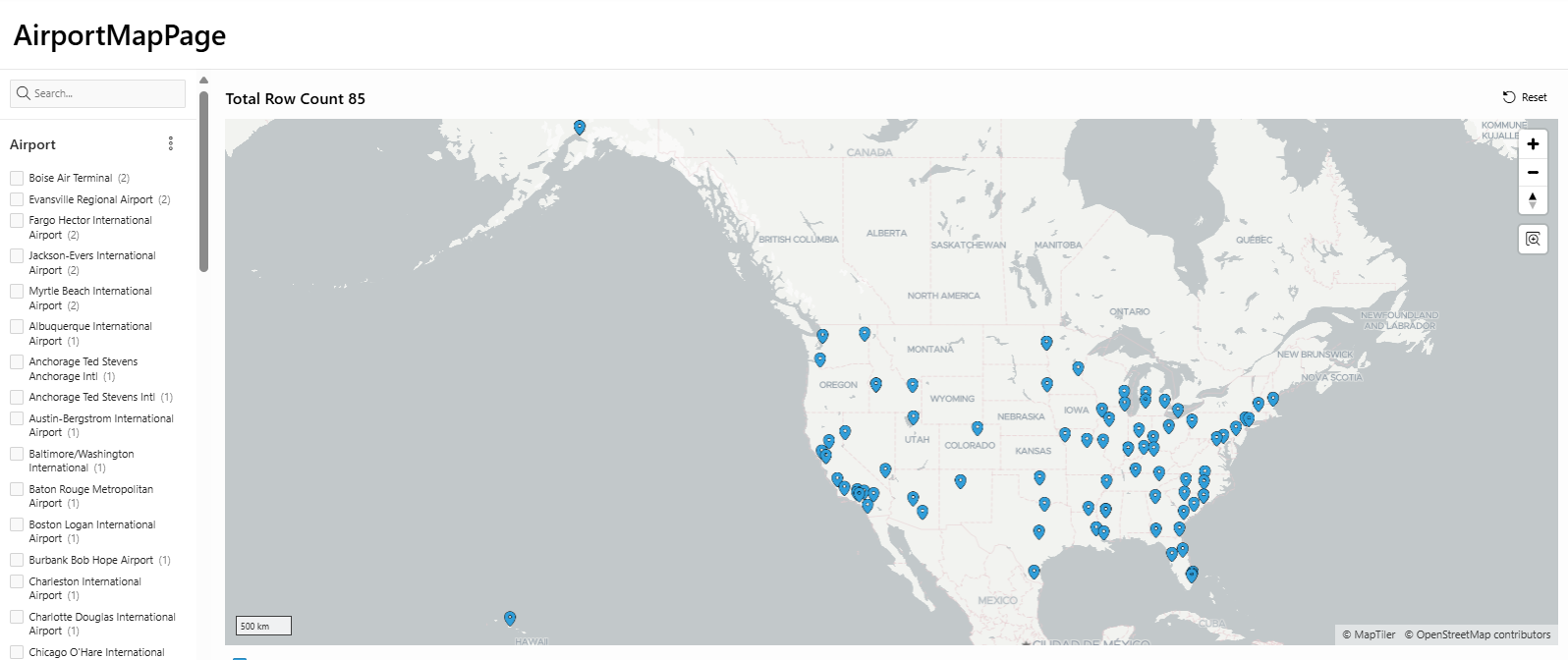
A map of the united states

AI-generated content may be incorrect.

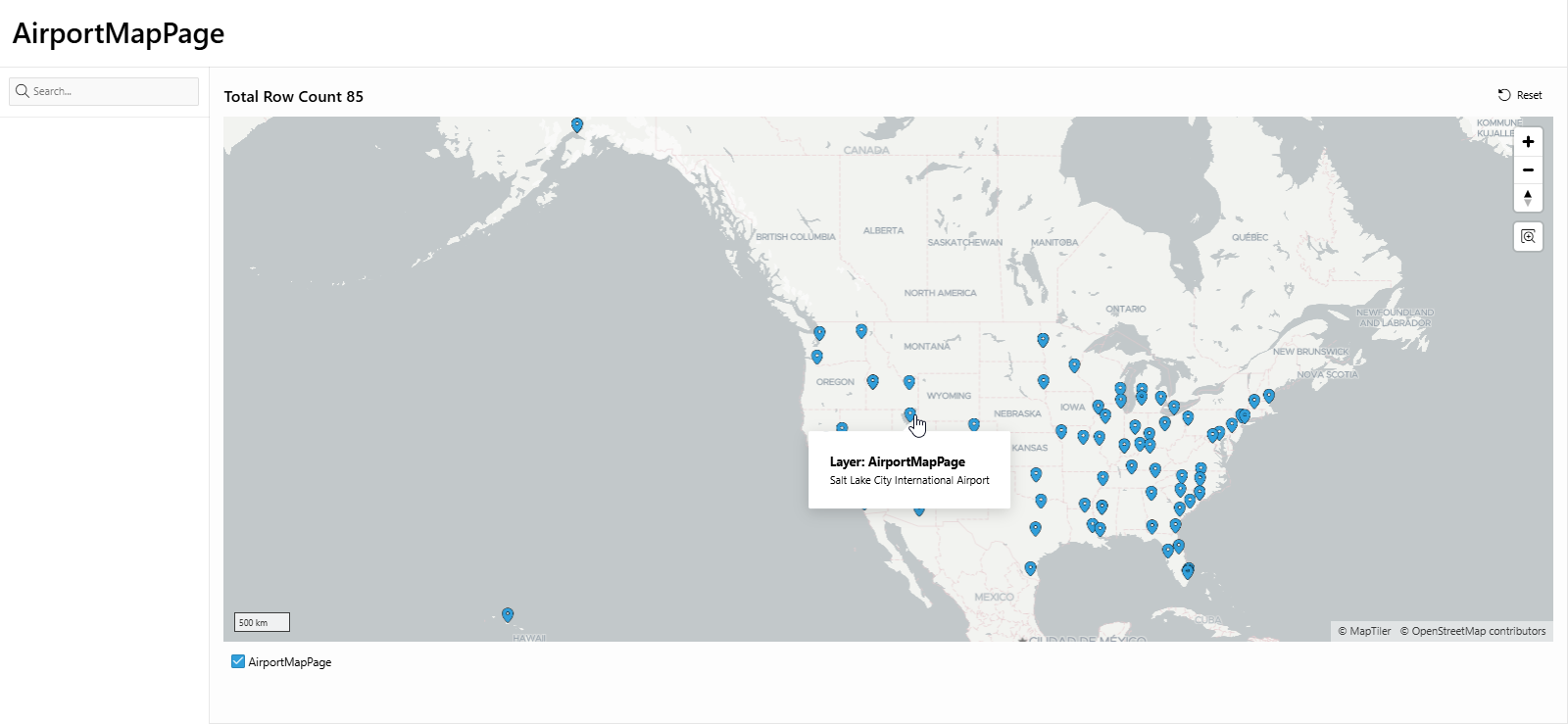
A map of the united states

AI-generated content may be incorrect.

Lets add more Faceted searches

A screenshot of a computer

AI-generated content may be incorrect.

A screenshot of a computer

AI-generated content may be incorrect.

A screenshot of a computer

AI-generated content may be incorrect.

A black rectangular object with a black stripe

AI-generated content may be incorrect.

A black rectangle with a red line

AI-generated content may be incorrect.


A screenshot of a computer

AI-generated content may be incorrect.

A screenshot of a computer

AI-generated content may be incorrect.

A map of the north america

AI-generated content may be incorrect.

Step 3: Set Map Region Attributes

  1. Center of the Map:

    • Set the initial center of the map to a default latitude and longitude, such as 37.7749 and -122.4194 (which corresponds to the center of the U.S., or adjust it to your preferred area).

For example, for the United States:

Latitude: 37.7749

Longitude: -122.4194

  1. Zoom Level: Set a Zoom Level that suits the geographical coverage you want (e.g., zoomed out for a continent view or zoomed in for city-level details).

    • Zoom Level: Choose a value that allows users to see multiple airports at once (e.g., 5 for regional coverage, 10 for more detailed zoom).

  2. Map Markers: Configure how the markers will be displayed on the map.

    • You can use Icons to represent different types of airports if you have that classification in your data.

    • If you do not have specific icons, APEX will use a default map marker for each airport.

  3. Popup Info: Set up the Popup Info when a user clicks on an airport marker. The popup can show details like the airport name and IATA code.

    • The Title will display the airportname.

    • The Description will display the IATACode.

Step 4: Customize Map with Additional Settings (Optional)

  1. Clustering (Optional): If your map contains a lot of airports and markers are overlapping, you can enable Marker Clustering. This will group markers together when zoomed out, improving the map’s readability.

  2. Enable Dynamic Interaction: If you want to allow users to interact with the map and select multiple filters (e.g., by region or airport code), you can add Faceted Search or Filters to the map.

  3. Adding Other Data Points: You can enhance the map with additional data, such as airport images or links to flight data.

Step 5: Save and Run the Map

  1. After configuring the map region settings, click Next and choose any additional report settings you want.

  2. Click Finish to save the page.

Step 6: Run and Preview the Report

  1. After creating the map, click Run at the top-right of the page.

  2. You should now see a map with markers representing each airport in your AirportsLatLon table. Clicking on a marker will show a popup with the airport name and IATA code.

Example SQL Query for Map Data Source

SELECT airportname AS title,

       IATACode AS description,

       Latitude AS latitude,

       Longitude AS longitude

FROM AirportsLatLon;

This query will pull the airport names, IATA codes, and coordinates (latitude and longitude) for plotting the map markers.

Additional Customization

  • Filter Data on the Map: You can add filtering options to your page (e.g., drop-downs for selecting regions or airport types) so that users can narrow down the map markers.

  • Styling: You can customize the look and feel of your map by editing the page styles or adding custom CSS.

By following these steps, you can create a Map Report in Oracle APEX that displays airport locations using the AirportsLatLon table. The markers will be placed based on the Latitude and Longitude, and clicking on each marker will show more details about the airport, such as its name and IATA code.

Creating an Airport Map Report not only makes your data more engaging but also adds valuable context to your application. Users can instantly see where each airport is located, click markers for more information, and even link out to detailed airport pages if needed. By combining spatial visualization with APEX’s declarative map features, you’ll deliver a richer, more intuitive user experience that brings your airport data to life.

How do I make the map’s tooltip display a detail page

 In Oracle APEX, enhancing your map’s tooltip to link directly to a detail page provides users with immediate access to comprehensive information about a location without cluttering the map. By embedding a URL or APEX page link in the tooltip’s HTML expression, you can turn each marker’s hover text into a clickable link that opens the corresponding detail page—either in a new window, modal dialog, or the same page. This approach creates a seamless user experience, allowing you to combine high‑level geographic visualization with in‑depth data exploration.

In Oracle APEX, you can turn a map marker’s tooltip into a clickable link that opens a detail page, giving users quick access to more information without cluttering the map. First, ensure your SQL query for the Map region returns the primary key of the record you want to view, for example:

SELECT latitude AS lat,
longitude AS lon,
id AS record_id,
name AS location_name
FROM locations

Next, in Page Designer, edit your Map region’s Layer settings. Change the Tooltip Column property to an HTML Expression rather than a static column. Enter an expression like this:

'' || name || '' ||
'View Details' ||
''

Here, replace 20 with the target detail page number and P20_RECORD_ID with the page item that the detail page uses to fetch the record. This HTML will render the name in bold and a “View Details” link below it.

If you prefer to open the detail page in a modal dialog, adjust the link to use the APEX modal link syntax:

'' || name || '' ||
'View Details' ||
''

This code uses the apex.navigation.dialog JavaScript API to open page 20 as a modal, passing the record ID.

Finally, save and run your page. When you hover over a marker, the tooltip will display the HTML with a clickable link. Clicking “View Details” will navigate to or open the detail page, passing the correct record ID so that your detail region or report shows the specific data for that location.

Example

In this example we are going to make the tool tip “clickable and display a pre-existing detail page.

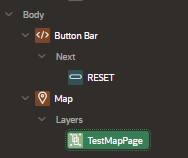
Step 1 – Go to the layer that displays the tooltip.

A screenshot of a computer

AI-generated content may be incorrect. 

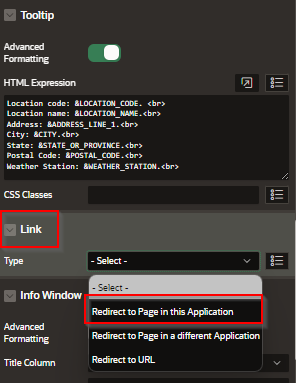
Step 2- Go to the Link area and select the type of redirect that you want

A screenshot of a computer

AI-generated content may be incorrect. 

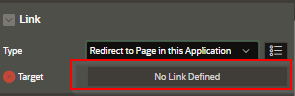
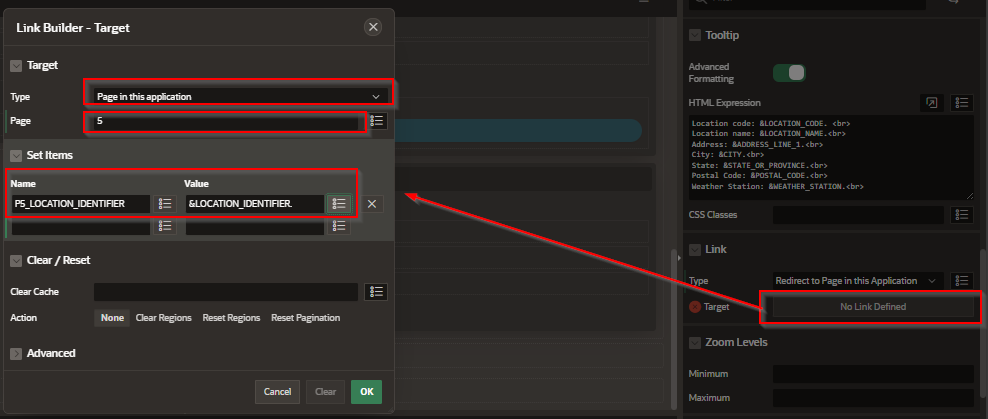
Step 3 – Set the link

A screenshot of a computer

Description automatically generated 


Step 4 -  Select

  • Type- In this case “Page in this application”

  • Page – This is the application page number. In this case is page #5.

  • Set Items

    • Name: The name of the control IN THE DESTINATION page

    • Value: The value you are passing TO the destination screen. We are passing the Identity column value.


A screenshot of a computer

AI-generated content may be incorrect.


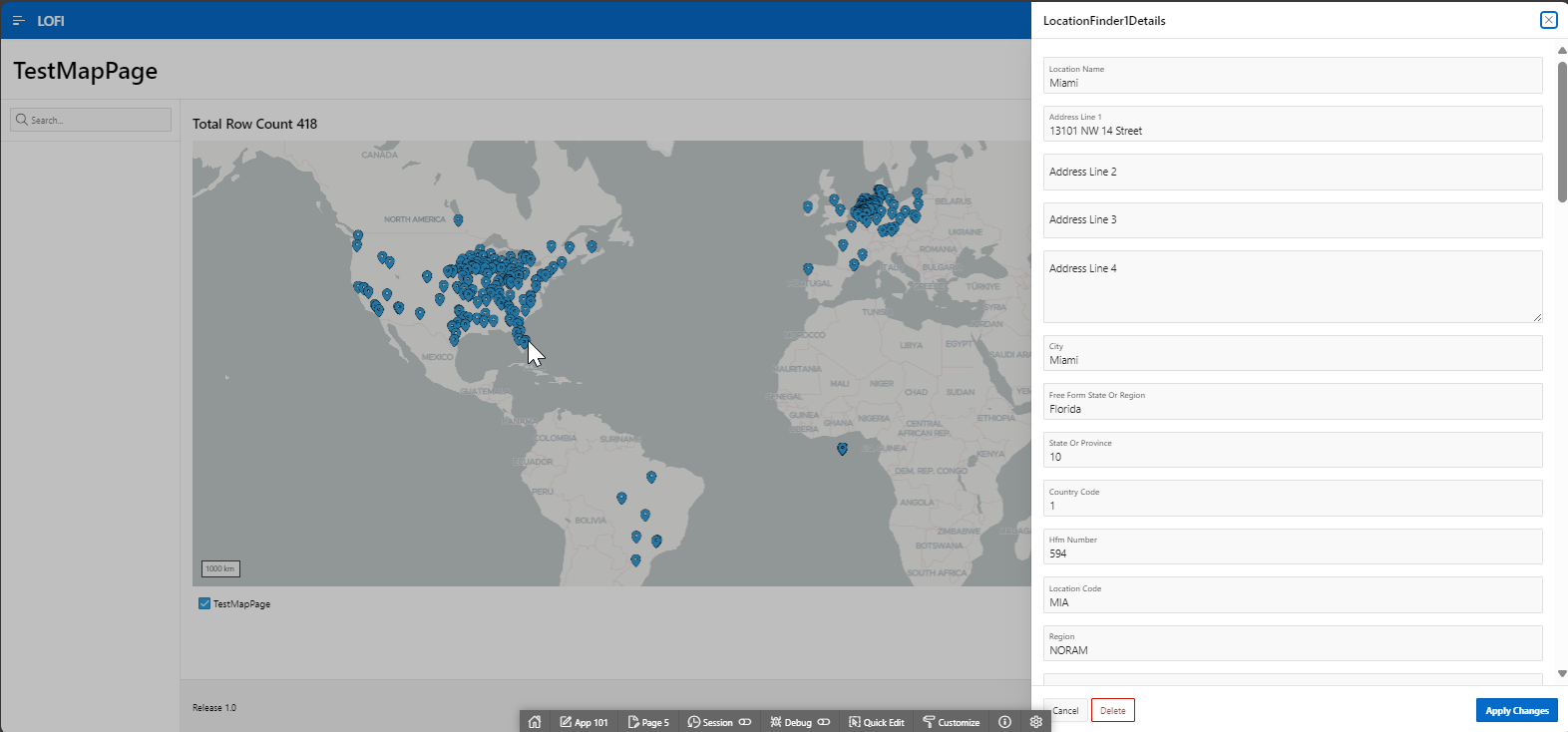
Save your changes and browse. In this example we open a “drawer” form of the location.

A screenshot of a computer

AI-generated content may be incorrect.


By configuring your map tooltip to direct users to a detail page, you bridge the gap between spatial overview and record‑level insights, greatly improving navigation and data discovery. Whether you choose to open the detail page in a modal dialog for quick reference or navigate to a full‑page report, integrating tooltips with page links makes your Oracle APEX map both interactive and informative, ultimately providing a richer application experience.

UI Defaults

 In Oracle APEX, User Interface (UI) Defaults are a set of metadata-driven, table- and column-scoped attributes that APEX consults when it g...