Search This Blog

Monday, June 30, 2025

How do I Get the User name Using PL/sql Expression

 In Oracle APEX, obtaining the current user’s name within PL/SQL is essential for auditing, personalization, and security-related logic. You can use built-in substitution strings like :APP_USER, APEX utility functions such as v('APP_USER'), or the Oracle context function SYS_CONTEXT('USERENV','SESSION_USER') to retrieve the username. Embedding these expressions in PL/SQL processes, validations, or default value computations enables you to tailor page behavior and data operations based on who is logged in.

Use ARIAL font, size 14px, plain text:

To retrieve the currently logged‐in user’s name in Oracle APEX within a PL/SQL expression, you have several reliable options. The simplest is to use the built‑in substitution string :APP_USER, which APEX populates with the session’s user identifier. You can also call the APEX utility function v('APP_USER') in PL/SQL, or use the Oracle context function SYS_CONTEXT('USERENV','SESSION_USER') for the database schema user.

Example Methods

  1. Substitution String in PL/SQL

BEGIN
  INSERT INTO audit_log (user_name, action_date)
  VALUES (:APP_USER, SYSDATE);
END;
  1. APEX Utility Function

DECLARE
  l_user VARCHAR2(4000);
BEGIN
  l_user := v('APP_USER');  
  -- use l_user as needed  
END;
  1. Oracle Context Function

DECLARE
  l_user VARCHAR2(30);
BEGIN
  l_user := SYS_CONTEXT('USERENV','SESSION_USER');  
  -- returns the database schema user  
END;

Using in Default Value Computations

  • In Page Designer, for a page item’s Default Value, choose PL/SQL Expression and enter:

    v('APP_USER')
    

    or

    SYS_CONTEXT('USERENV','SESSION_USER')
    

Using in Validations or Processes

  • Create a Validation of type PL/SQL Function Returning Boolean:

    RETURN v('APP_USER') = 'ADMIN';
    
  • In a Process, reference :APP_USER directly to record who performed an action.

By using these built‑in functions or substitution strings, you ensure that your application consistently and securely identifies the current user within any PL/SQL logic. This enables auditing, personalization, and fine‑grained security controls throughout your Oracle APEX application.

Example

How do I Get the User name Using PL/sql Expression

Getting the User Name Using PL/SQL Expression in Oracle APEX

Retrieving the currently logged-in username in Oracle APEX is essential for tracking user actions, personalizing content, and managing security. This tutorial explains how to obtain the username using PL/SQL expressions within different APEX components.

Using the APP_USER Variable

Oracle APEX automatically provides the APP_USER variable, which holds the username of the currently logged-in user. This variable can be used in different places, such as SQL queries, PL/SQL processes, and page items.

Method 1: Using PL/SQL Expression in a Page Item

  1. Open Page Designer in your APEX application.

  2. Create a new page item (e.g., P1_USERNAME) of type Display Only.

  3. Set the Value Type to PL/SQL Expression.

  4. In the PL/SQL Expression field, enter:

:APP_USER

  1. Save and run the page. The page item will now display the logged-in username.

Method 2: Using APP_USER in a SQL Query

You can use APP_USER in SQL queries to filter data based on the logged-in user.

Example: Retrieve employee details for the logged-in user

SELECT employee_id, name, department

FROM employees

WHERE username = :APP_USER;

This ensures that each user sees only their own records.

Method 3: Using APP_USER in PL/SQL Process

You can use APP_USER within a PL/SQL Process to store the username in a table or log user activity.

Example: Inserting the logged-in user's activity

INSERT INTO user_logs (username, login_time, action)

VALUES (:APP_USER, SYSDATE, 'Page Accessed');

This records every instance when a user accesses a page.

Method 4: Using APP_USER in a PL/SQL Function Returning a Value

If you need to use APP_USER in a function for validation or business logic, you can define a PL/SQL function as follows:

FUNCTION get_current_user RETURN VARCHAR2 IS

BEGIN

   RETURN :APP_USER;

END get_current_user;

This function can be used in different PL/SQL components in your application.

Method 5: Displaying the Username in a Header or Footer

  1. Go to Shared Components > User Interface > Breadcrumbs, Headers, or Footers.

  2. Add the following PL/SQL block in the appropriate section:

Welcome, <b> &APP_USER. </b>

This dynamically displays the username in the header.

Best Practices

  • Use APP_USER for user-specific filtering and logging.

  • Store APP_USER in a table if you need a historical log of user activities.

  • Always validate user permissions before displaying data based on APP_USER.

  • Use APP_USER in combination with authorization schemes for secure access control.

The APP_USER variable in Oracle APEX makes it easy to retrieve the logged-in username using PL/SQL expressions. Whether you are storing user activity, filtering reports, or personalizing content, APP_USER ensures that your application dynamically adapts to each user's session.


EXAMPLE:

The key here is to use  the PL/SQL EXPRESSION: apex_custom_auth.get_username

In this example we will save the value into a text box and call the expression at the time that the page loads.

Step 1 – Add a field to the page
A screenshot of a computer

Description automatically generated

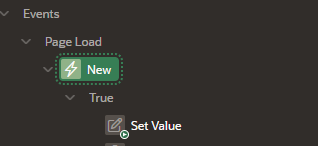
Step 2- Add a dynamic action

A screen shot of a computer

Description automatically generated

  • In this case, in the Event> Page Load.
A screenshot of a computer

Description automatically generated

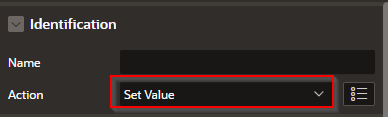
  • Set the Action: Set Value

A screenshot of a video game

Description automatically generated

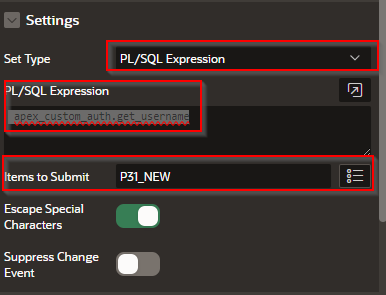
  • Set Settings > Settings: PL/SQL Expression

  • Set Settings > PL/SQL Expression: apex_custom_auth.get_username

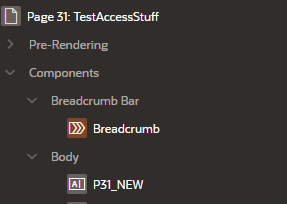
  • Set Settings > Items To Submit: P31_NEW (the name of your field)
A screenshot of a computer

Description automatically generated

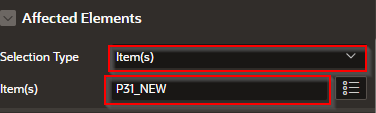
  • Set Affected Elements > Selection Type: Item(s)

  • Set Affected Elements > P31_NEW (Name of your Text Field)
A screenshot of a video game

Description automatically generated

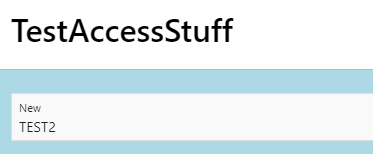
Here is the result. The name of the user (In this case Test2) is displayed in the box
A close-up of a screen

Description automatically generated


By leveraging PL/SQL expressions to fetch the current username, you can implement robust auditing, display personalized greetings, or enforce row‑level security within your APEX applications. Whether you choose the APEX substitution string or the Oracle context function, integrating the user name into your PL/SQL logic enhances both the functionality and the security of your application.

How do I Move data from left panel to right panel

 Introduction

In Oracle APEX, creating an intuitive interface for managing data selections is essential for user productivity. One common pattern is the dual-panel layout, where users can move items from a left panel (available options) to a right panel (selected items). This technique is often used in forms where users need to assign roles, select categories, or choose multiple entries from a list. Oracle APEX supports this functionality using the Shuttle item type, allowing seamless transfer of data between panels without writing complex code.

To move data from a left panel to a right panel in Oracle APEX, you typically use the Shuttle page item, which provides dual‑list “pick list” functionality out of the box. Users can select one or more values on the left (Available) and click arrows to transfer them to the right (Selected), and vice versa.

1. Create the Shuttle Item
  • In Page Designer, under the region where you want the panels, right‑click Items and choose CreateShuttle.
  • Give it a name, e.g. P1_MY_SHUTTLE.
  • Set Display Extra Values to No (unless you need to show values not in the LOV).

2. Define the List of Values (LOV)
  • Under the Shuttle’s properties, in the List of Values section, choose Type = SQL Query (or Static).
  • For a SQL LOV, enter:

SELECT display_value, return_value
  FROM my_lookup_table
 ORDER BY display_value

  • This LOV populates the left “Available” panel.

3. Configure Shuttle Attributes
  • Display Null Value = No (removes an empty row).
  • Height = e.g. 200 (pixels) to show enough rows.
  • Icon Alignment = Left or Right for the arrow buttons.
  • Appearance: choose Compact or Default.

4. Set Source for Selected Values
  • Under SourceType, set Always, replacing any existing value.
  • This maps the selected items (right panel) to P1_MY_SHUTTLE on page submit.

5. Using the Shuttle in Processes
  • When the page submits, :P1_MY_SHUTTLE contains a colon‑delimited list of return_values from the right panel.
  • In a PL/SQL process, split and insert or delete as needed:

BEGIN
  FOR i IN apex_string.split(:P1_MY_SHUTTLE, ':') LOOP
    INSERT INTO target_table(col) VALUES(i);
  END LOOP;
END;

6. Manual Dual‑List Implementation (Optional)
  If you prefer custom regions instead of a Shuttle item:
  a) Create two Classic Report regions side by side with static IDs (leftPanel, rightPanel).
  b) Add buttons or icons for “Move →” and “← Remove” with jQuery selectors.
  c) Use Dynamic Actions:
    • Event: Click on the Move button.
    • True Action: Execute JavaScript:

$('#leftPanel option:selected').appendTo('#rightPanel');

    • Similarly, for the Remove button:

$('#rightPanel option:selected').appendTo('#leftPanel');

    • Finally, on submit, collect rightPanel values into a hidden item for processing.

By using the built‑in Shuttle item you get a fully supported dual‑list control with minimal effort. For custom requirements, the manual approach using Dynamic Actions and JavaScript gives you total flexibility over layout and behavior.

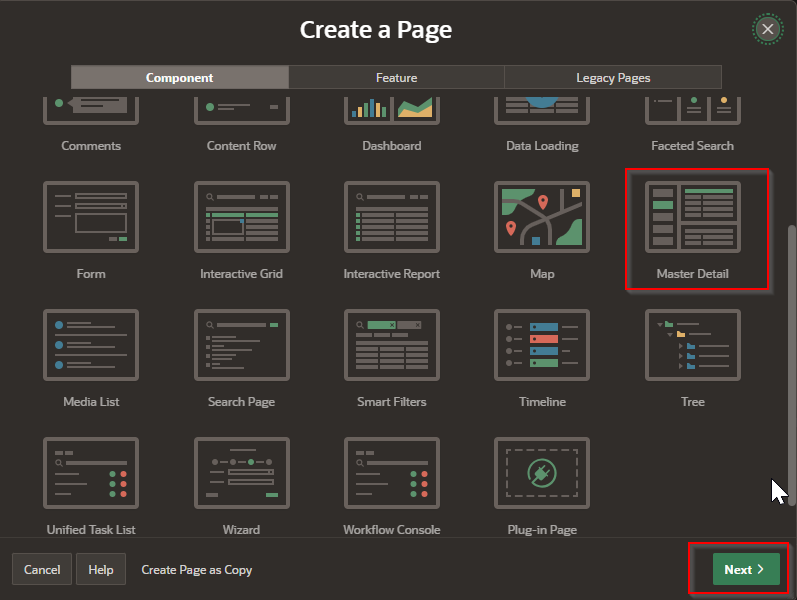
Select Master Detail

A screenshot of a computer

AI-generated content may be incorrect.

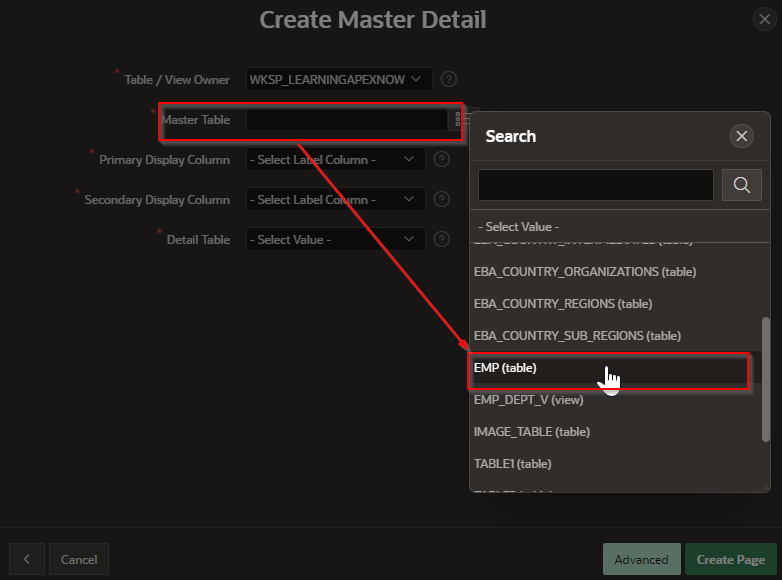
Select the table

A screenshot of a computer

AI-generated content may be incorrect.

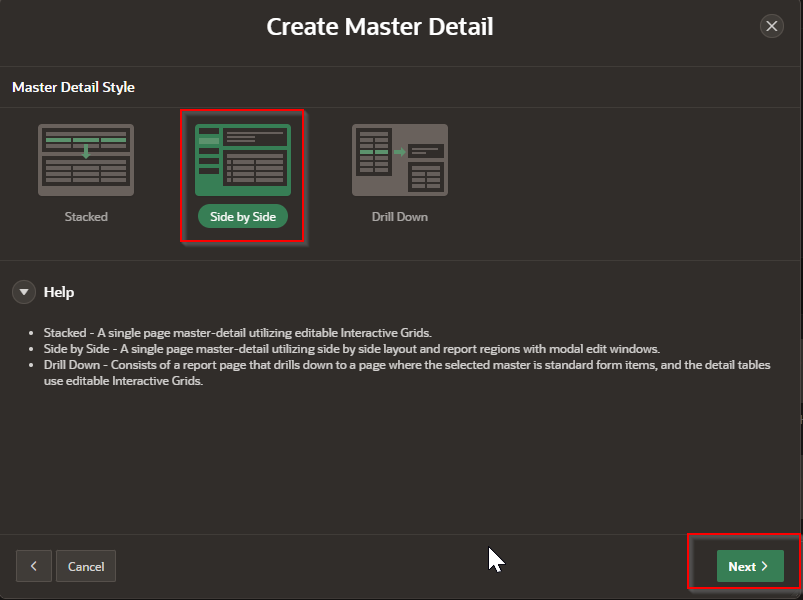
Select the kind of report

A screenshot of a computer

AI-generated content may be incorrect.


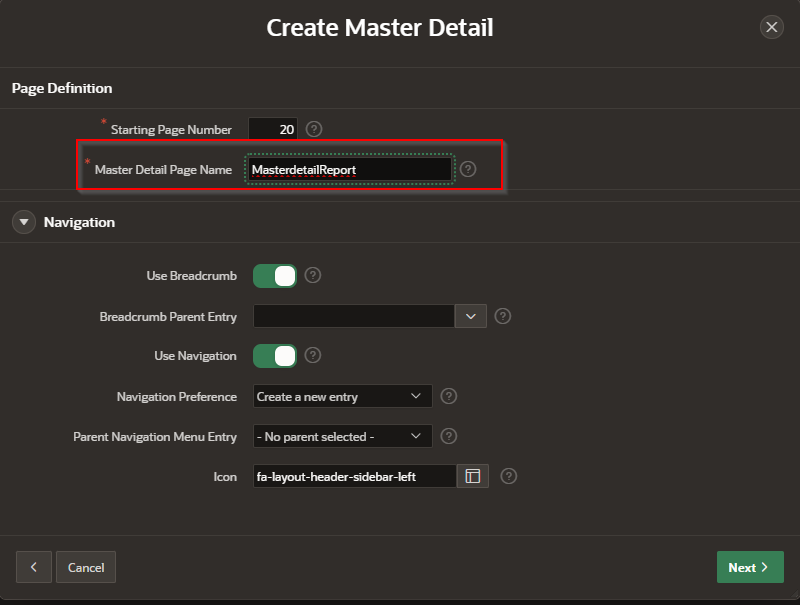
Name the page

A screenshot of a computer

AI-generated content may be incorrect.

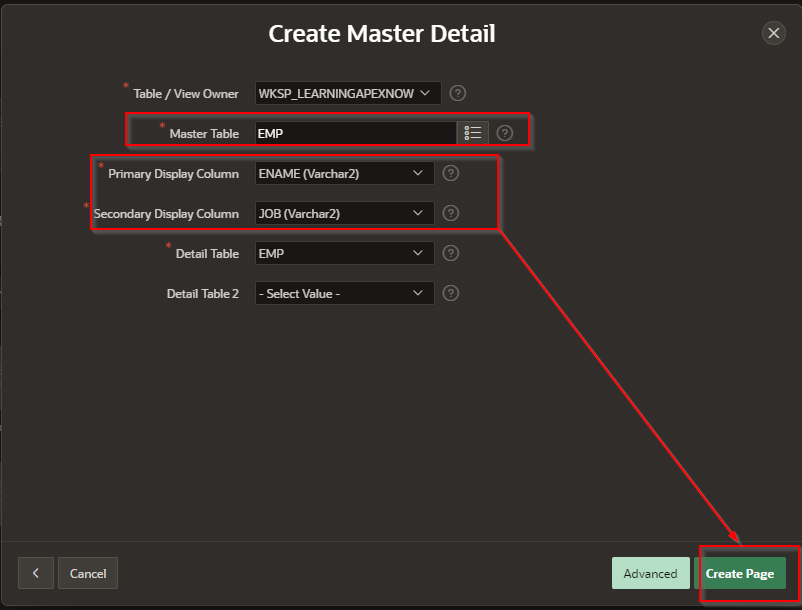
Identify the table that you want to work with

A screenshot of a computer

AI-generated content may be incorrect.

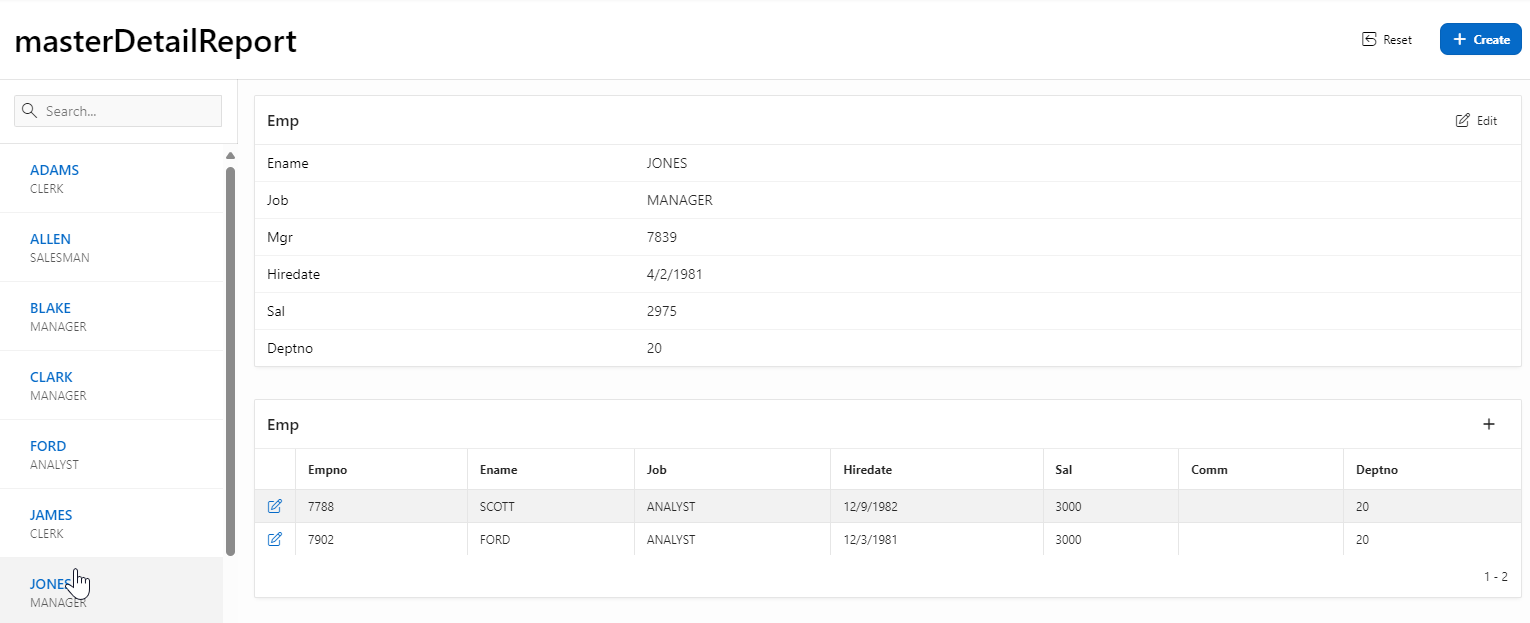
This is the result:

A screenshot of a calendar

AI-generated content may be incorrect.

Conclusion

Using the Shuttle item type in Oracle APEX simplifies the process of selecting and transferring multiple values within a form. This component enhances user interaction by offering a clean, drag-free, and organized method for moving data between two lists. Whether you're managing user permissions, filtering datasets, or setting preferences, this approach helps keep your UI efficient and user-friendly while reducing the need for custom development.

How do I Display icons as part of tab headers

 Introduction

In Oracle APEX, enhancing the user interface is a key factor in building modern, intuitive applications. One simple yet effective way to improve navigation is by displaying icons as part of tab headers. Icons help users quickly identify the purpose of each tab at a glance, especially when working with a variety of content areas such as forms, reports, charts, and dashboards. With just a few adjustments to region properties or by adding a bit of HTML, you can easily customize your tab headers to include visually meaningful icons.

Displaying Icons as Part of Tab Headers in Oracle APEX

Using icons in tab headers enhances the visual appeal and usability of an Oracle APEX application. By incorporating icons, users can quickly identify sections based on visual cues rather than just text. This tutorial explains how to add icons to tab headers using different methods, including static HTML, CSS, and JavaScript.

Step 1: Creating the Tab Structure

  1. Open your APEX application and navigate to the page where you want to add tabs.

  2. In Page Designer, create a Static Content Region to act as the tab container.

  3. Inside this region, create a List, Buttons, or Links to act as tab headers.

  4. Assign Static IDs to these tabs, such as tab_1, tab_2, etc.

Example static HTML for tab headers:

<ul class="custom-tabs">

  <li><a href="javascript:void(0);" onclick="showTab(1)"><i class="fa fa-home"></i> Home</a></li>

  <li><a href="javascript:void(0);" onclick="showTab(2)"><i class="fa fa-user"></i> Profile</a></li>

  <li><a href="javascript:void(0);" onclick="showTab(3)"><i class="fa fa-cog"></i> Settings</a></li>

</ul>

Each <i> tag represents an icon using Font Awesome (which is included in APEX).

Step 2: Creating the Tab Content Regions

  1. In Page Designer, create multiple Static Content Regions for tab content.

  2. Assign Static IDs to each region (tab_region_1, tab_region_2, etc.).

  3. Ensure all tab regions are within the same Parent Region for organization.

Example tab content:

<div id="tab_region_1">Welcome to the Home tab</div>

<div id="tab_region_2" style="display:none;">This is the Profile section</div>

<div id="tab_region_3" style="display:none;">Settings go here</div>

Step 3: Adding JavaScript for Tab Switching

Add this JavaScript in Page Designer > Execute When Page Loads to handle tab switching:

function showTab(tabNumber) {

    // Hide all tab regions

    $("[id^=tab_region_]").hide();


    // Show the selected region

    $("#tab_region_" + tabNumber).show();


    // Update active tab styling

    $(".custom-tabs li").removeClass("active");

    $(".custom-tabs li:nth-child(" + tabNumber + ")").addClass("active");

}

This function hides all tab content areas and displays only the selected one.


Step 4: Styling the Tabs with CSS

To ensure a visually appealing tab design with icons, add this CSS in Shared Components > CSS:

.custom-tabs {

    list-style: none;

    padding: 0;

    margin: 0;

    display: flex;

    border-bottom: 2px solid #ccc;

}


.custom-tabs li {

    padding: 10px 20px;

    cursor: pointer;

    background: #f1f1f1;

    margin-right: 5px;

    display: flex;

    align-items: center;

}


.custom-tabs li i {

    margin-right: 8px;

}


.custom-tabs li.active {

    background: #0077cc;

    color: white;

    font-weight: bold;

}

This ensures that:

  • Icons appear before the text.

  • The active tab is highlighted.

  • Tabs are visually appealing and consistent.

Step 5: Using APEX Lists for Dynamic Tabs

Instead of manually coding the tab list, you can create a List component in Shared Components and reference it dynamically.

  1. Go to Shared Components > Lists and create a new List.

  2. Add list entries with the following format:

SELECT 

    CASE 

        WHEN list_name = 'Home' THEN '<i class="fa fa-home"></i> Home'

        WHEN list_name = 'Profile' THEN '<i class="fa fa-user"></i> Profile'

        WHEN list_name = 'Settings' THEN '<i class="fa fa-cog"></i> Settings'

    END AS list_label,

    list_target

FROM your_table;

  1. Use this list as the source for a List Region.

  2. Modify the List Template to include icons.

Alternative: Using Dynamic Actions Instead of JavaScript

  1. Create a Dynamic Action triggered by clicking a tab.

  2. Add an action to Hide all tab regions.

  3. Add another action to Show the corresponding tab region.

  4. Optionally, update the styling by adding a Set Style action.

This approach avoids custom JavaScript but requires manual setup for each tab.

Best Practices

  • Use icons relevant to the tab content for better usability.

  • Ensure icons and text are aligned properly by adjusting padding and margins.

  • If using Font Awesome, make sure APEX includes the correct CSS.

  • For larger applications, use Dynamic Actions instead of custom JavaScript for better maintainability.

  • Test on different devices to ensure icons display correctly on mobile.

Adding icons to tab headers in APEX improves navigation and visual appeal. By using HTML, CSS, and JavaScript (or Dynamic Actions), tabs can be styled and function seamlessly, enhancing the user experience. Whether using static HTML, lists, or Dynamic Actions, icons provide a visually intuitive way to organize content.

EXAMPLE:

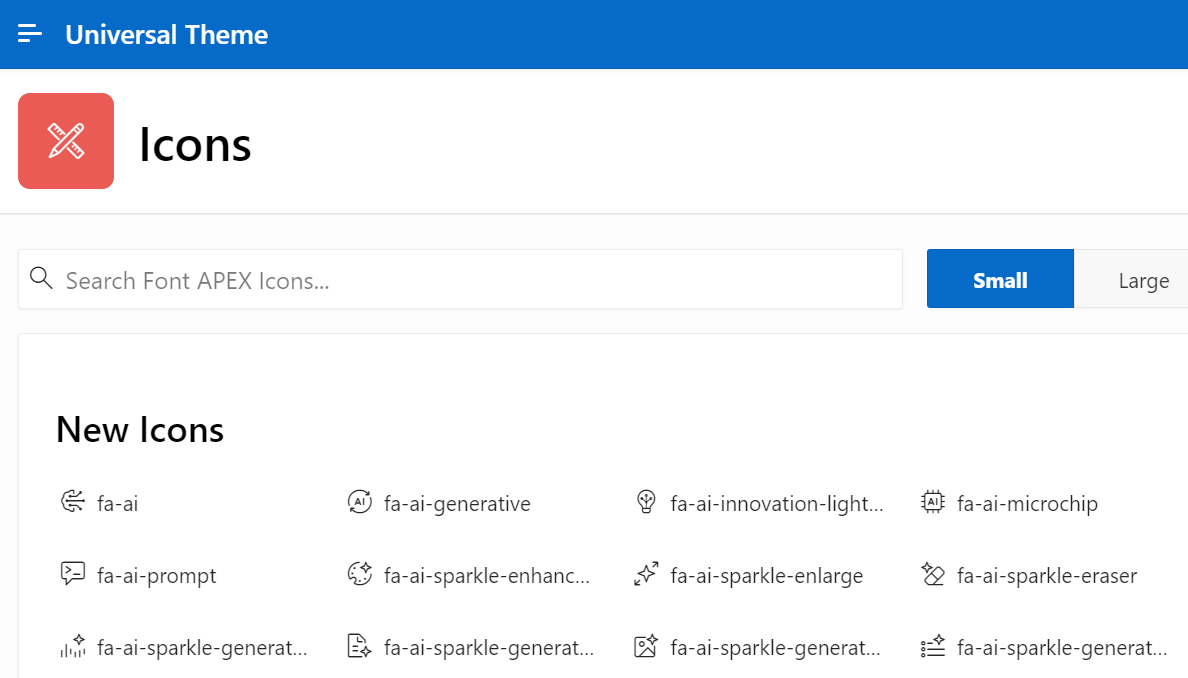
Step 1 - Navigate to : Icons - Universal Theme (oracle.com)

Step 2- Select the desired Icon

A screenshot of a computer

AI-generated content may be incorrect.


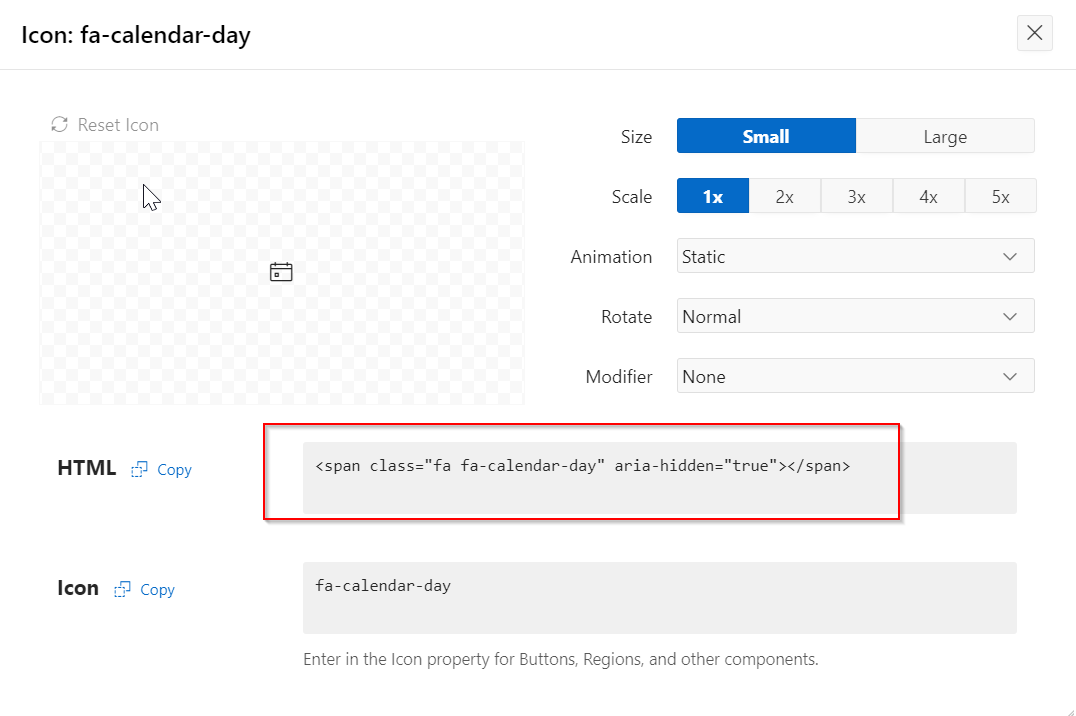
Step 3- Copy the icon “span” code

A screenshot of a computer

AI-generated content may be incorrect.


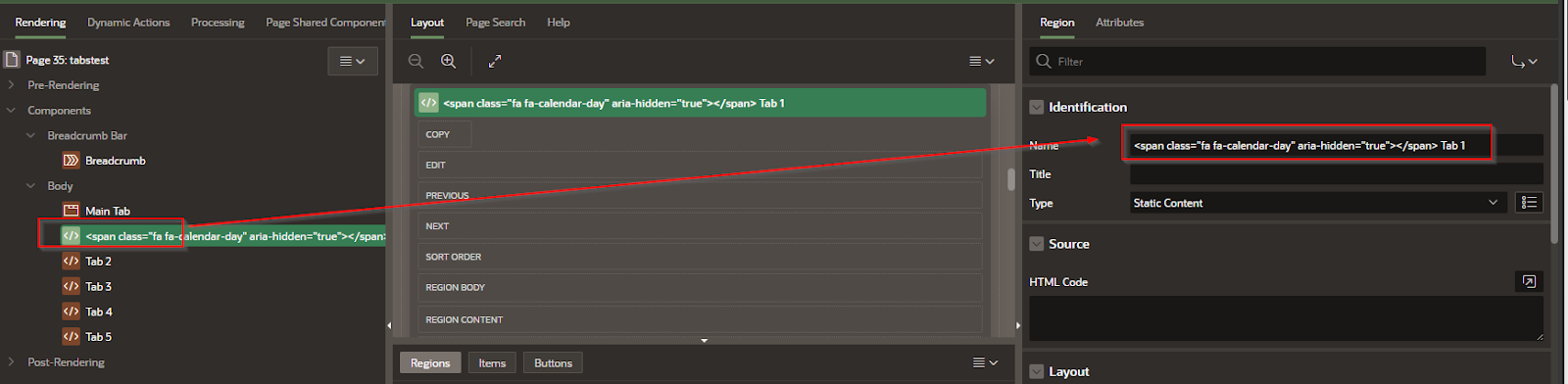
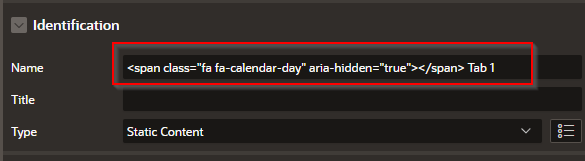
<span class="fa fa-calendar-day" aria-hidden="true"></span>


Step 4- place the code in the Name field of the region

A screen shot of a graph

AI-generated content may be incorrect.


A screenshot of a computer

AI-generated content may be incorrect.

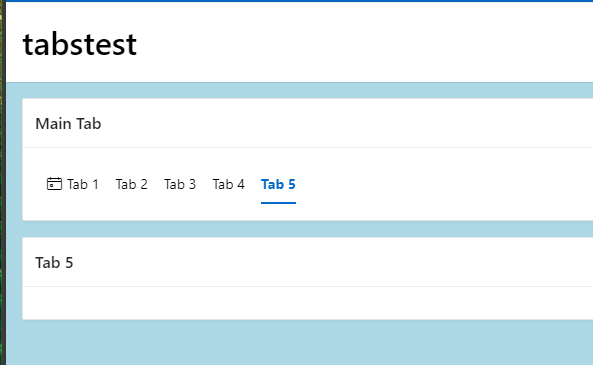
It should look something like this tab 1:

A screenshot of a computer

Description automatically generated

Conclusion
Adding icons to tab headers in Oracle APEX not only improves the overall aesthetic but also contributes to a more intuitive and user-friendly experience. Whether you're guiding users through multi-step forms or segmenting content into visual categories, the combination of icons and labels enhances usability. By leveraging APEX’s support for HTML and Font Awesome icons, you can implement this feature with minimal effort while making a significant impact on navigation clarity.

UI Defaults

 In Oracle APEX, User Interface (UI) Defaults are a set of metadata-driven, table- and column-scoped attributes that APEX consults when it g...